How to display an RSS feed on your website.
To display an RSS feed on your website, you need the feed’s address and something that reads it: WordPress’s free RSS block, a few lines of code, or a feed widget. Here is how to find the address, and what each method shows.
- Published
- Reading time
- 9 min read
On this page
The short answer
- To display an RSS feed on your website you need the feed’s address and something that fetches it and turns its items into HTML.
- WordPress has a free RSS block that does this on your server: up to 20 items, with titles, dates, authors and excerpts, and never pictures.
- Wix, Squarespace and Webflow have no block that reads another site’s feed. Wix’s Podcast Player is the exception, for podcast feeds.
- A few lines of JavaScript work only when the feed allows it. Of 13 public feeds we tried from another website, 2 did.
- For pictures, a feed that refreshes itself on any site builder, or several feeds in one list, use a feed widget.
How do you display an RSS feed on your website?
Find the feed’s address, then give it to something that fetches the feed and turns its items into HTML. On WordPress that is the free RSS block. On other site builders it is a feed widget pasted into a code element. On a site you code yourself, it is a short script, or code on your server.
An RSS feed is a file, not a page. Open one in a browser and you get XML, written for programs called feed readers. Showing it on a website means doing a reader’s job on your page: fetching the file, picking out each item’s title, link and date, and drawing them. The methods differ in where that work happens, and that decides what each can show.
| Method | Where it works | What it shows | Pictures |
|---|---|---|---|
| WordPress’s RSS block | Any WordPress site with the block editor | Up to 20 linked titles, with dates, authors and excerpts if you switch them on | No |
| Your own JavaScript | Any page that runs scripts, but only for feeds that allow it | Whatever you write | If you write it |
| Code on your server | Sites with a server or serverless functions you control | Whatever you write | If you write it |
| A feed widget | Any site with an HTML or code element | Depends on the widget | Usually |
The rest of this guide takes them in turn, after the step all four share: finding the feed.
How do you find a website’s RSS feed address?
View the site’s page source and search for application/rss+xml or application/atom+xml: the href beside it is the feed. Most sites announce their feed that way. If none is there, try the address pattern for the platform the site runs on, from the table below, and open it to check you get a feed back.
The announcement is a link element in the page’s head. The RSS autodiscovery specification requires three attributes on it, rel, type and href, and feed readers find a site’s feed by looking for exactly this.
<link rel="alternate" type="application/rss+xml"
title="Example blog" href="https://example.com/feed/">| Platform | Feed address | Format |
|---|---|---|
| WordPress | example.com/feed/ | RSS 2.0 |
| Wix blog | The blog’s address, then /blog-feed.xml | RSS 2.0, newest 20 posts |
| Squarespace | The page’s address, then ?format=rss | RSS 2.0, newest 20 items |
| Ghost | example.com/rss/ | RSS 2.0 |
| Substack | name.substack.com/feed | RSS 2.0 |
| Medium | medium.com/feed/@username | RSS 2.0 |
| Shopify blog | The blog’s address, then .atom | Atom |
| YouTube channel | youtube.com/feeds/videos.xml?channel_id=ID | Atom |
| Mastodon | The profile’s address, then .rss | RSS 2.0, posts without titles |
| Bluesky | bsky.app/profile/handle/rss | RSS 2.0 |
| GitHub releases | github.com/owner/repo/releases.atom | Atom |
We fetched each of these on 11 November 2026, except Squarespace and Shopify, which come from their help centres. A YouTube feed needs the channel’s ID rather than its handle; our guide to embedding a YouTube channel shows where to find it.
RSS 2.0 and Atom are two formats for the same job, and everything in this guide reads both. Two things the table does not show. A Mastodon feed’s items have no titles, only the post’s text, so a tool that lists titles shows them blank or untitled. And some sites refuse feed requests from programs: Reddit’s feeds answered our test with 403 Blocked. Open a feed in your browser before you build around it, then check it works where you put it.
How do you add an RSS feed to a WordPress site?
Add an RSS block: type /rss on an empty line, then paste the feed’s address. Choose how many items to show, from 1 to 20, and switch on the date, author and excerpt if you want them. WordPress fetches the feed on your server, not in the visitor’s browser, and keeps a copy for 12 hours.
- Add the block. Select the + inserter and search for RSS, or type
/rsson an empty line and press Enter. - Paste the feed’s address into the block and confirm it. The block lists the feed’s newest titles straight away, five of them by default.
- Choose what it shows in the block’s settings: Number of items (1 to 20), Display author, Display date, Display excerpt, and Max number of words in excerpt (10 to 100). The toolbar switches between List view and Grid view, and the grid takes 2 to 6 columns.
- Publish, then check the page. Links open in the same tab unless you switch on Open links in new tab.
What the block leaves out
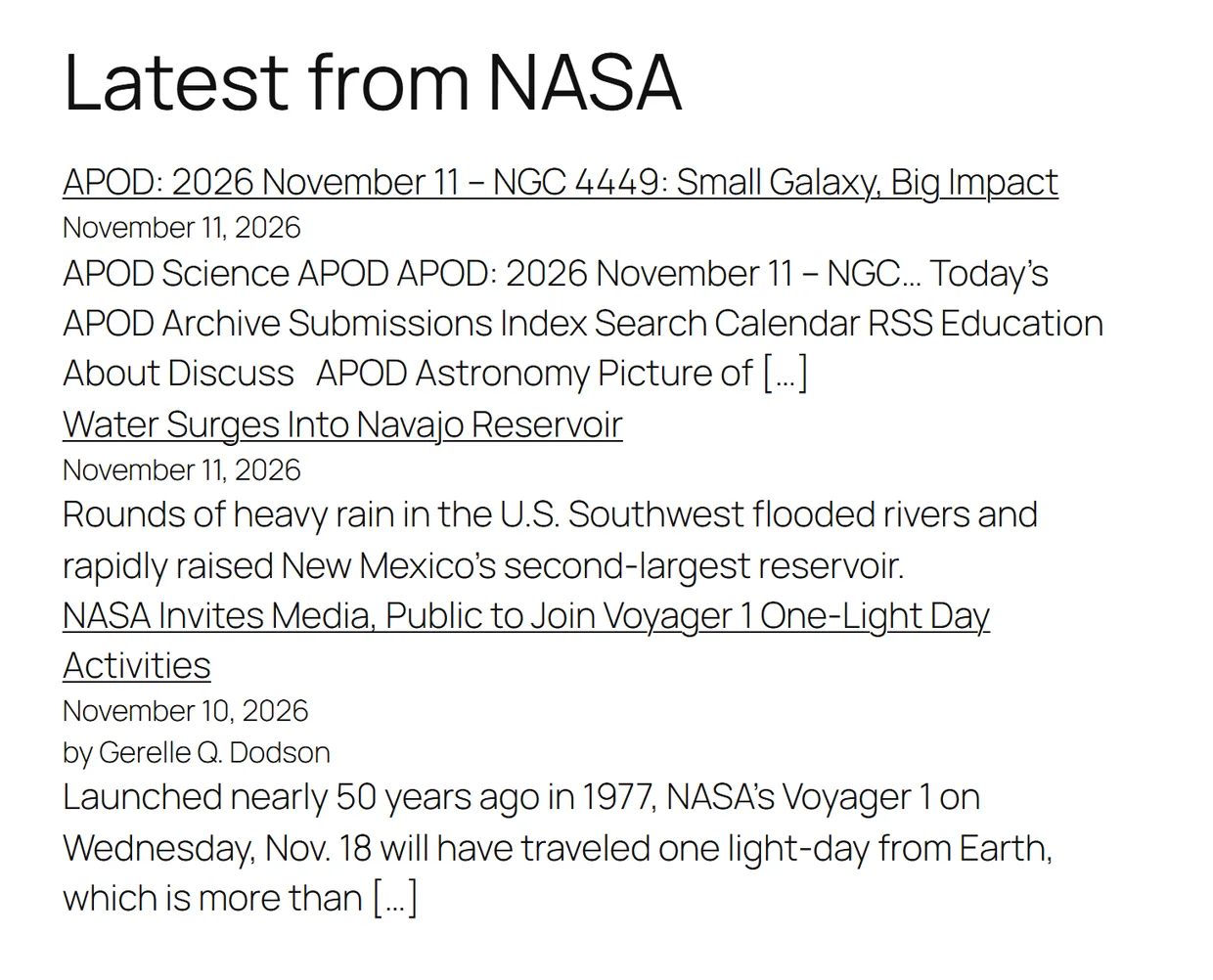
- Pictures. The block prints each item’s title, date, author and excerpt, and nothing else. We checked its source code: there is no image in its output, whatever the feed carries.
- Formatting. Excerpts lose their HTML and are cut at your word limit, with […] at the end. An excerpt is only as good as the feed’s description, as NASA’s first story shows.
- Authors, sometimes. Display author shows a name only for items whose feed gives one. Two of NASA’s three stories had none.
- Your own feed. The block refuses your site’s own home address, to avoid a loop that slows the site, and suggests the Latest Posts block instead.
- A second feed. Each block reads one address. To merge feeds into one list you need a plugin or code.
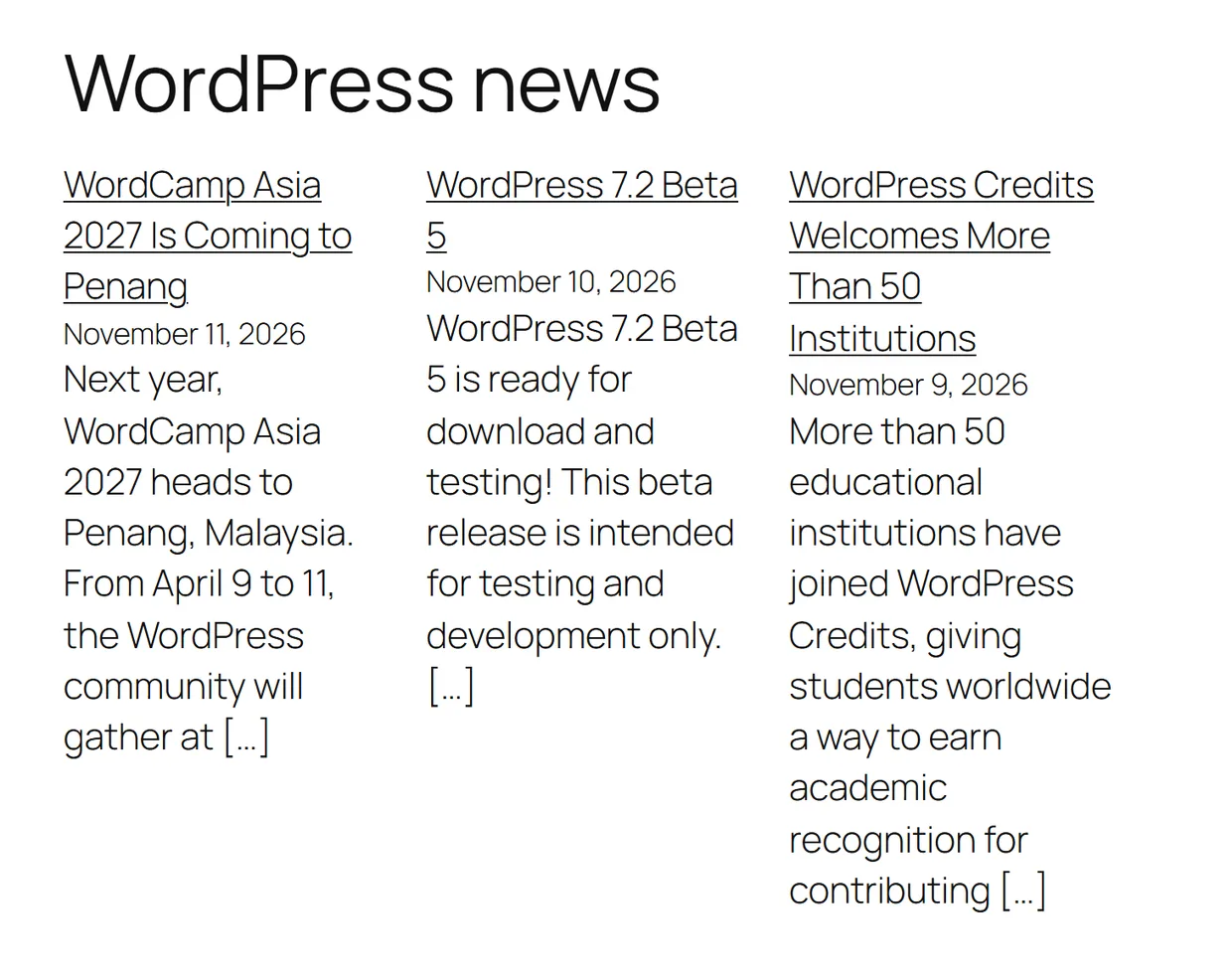
The block fetches through WordPress’s fetch_feed function, which caches a feed for 12 hours by default, so a story published in the morning may not appear until the evening. Developers can change that with the wp_feed_cache_transient_lifetime filter. Because the list is built on your server, the titles are in the page’s HTML when it arrives, and the browser rule the next sections deal with never comes into it.
How do you add an RSS feed in Wix, Squarespace or Webflow?
None of the three has a block that displays another site’s feed. Wix’s RSS button and Squarespace’s RSS block link visitors to your own feed, and Webflow generates feeds from your CMS collections. The exception is Wix’s Podcast Player, which reads a podcast feed. For anything else, paste a feed widget into the builder’s code element.
| Platform | Built in | Where the code goes | Watch for |
|---|---|---|---|
| Wix | An RSS button for your own blog; the Podcast Player, for podcast feeds | Add Elements, Embed Code, Popular Embeds, Embed HTML | Wix runs the code in a frame of its own that does not resize, so give the element room. |
| Squarespace | An RSS block, which links to your own feed | A Code block | Scripts need the Core, Plus or Advanced plan, and may not show while you are logged in. |
| Webflow | RSS feeds generated from your own CMS collections | A Code Embed element | The Designer shows a placeholder; preview or publish to see the feed. |
All three help centres describe feeds going out, not coming in. Squarespace’s RSS block adds a button visitors use to subscribe, and its feeds carry the 20 most recent items. Wix’s RSS button points at your own blog’s feed, also capped at 20 posts. Webflow’s help covers setting up an RSS feed for a collection, which is your content going out.
The one way in is for podcasts. Wix calls its Podcast Player an RSS reader: add the app from Add Apps, then in its Settings select Insert next to RSS Feed link, paste the feed and select Connect. Wix describes it only for podcast feeds, so for a blog or a news feed, use a widget.
Can you display an RSS feed with JavaScript?
Only if the feed allows it. Browsers stop a page from reading a file on another site unless that site sends an Access-Control-Allow-Origin header. In our test of 13 public feeds from a page on another domain, 2 loaded: Mastodon’s and NASA’s. The other 11, WordPress.org, YouTube and Substack among them, were blocked.
The rule is cross-origin resource sharing, usually shortened to CORS. It applies to requests a page’s scripts make, not to a person opening the feed, which is why a feed that opens fine in a tab can fail from a script with nothing but “Failed to fetch” in the console. We ran the test from a page on example.com, in a current desktop browser.
| Result | Feeds | Why |
|---|---|---|
| Loaded | Mastodon (mastodon.social), NASA | Both send Access-Control-Allow-Origin: * |
| Blocked | NPR | It allows one other site, its own apps.npr.org |
| Blocked | WordPress.org News, a WordPress.com blog, YouTube, Bluesky, Substack, Medium, Ghost, GitHub releases, BBC News, and this blog’s own feed | No Access-Control-Allow-Origin header at all |
If your feed is one of the few that allow it, or lives on the same domain as your page, a short script is enough. This one lists the five newest items as links, and ran against Mastodon’s feed in our test:
<ul id="rss-feed"></ul>
<script>
  const FEED = "https://mastodon.social/@Mastodon.rss";

  fetch(FEED)
    .then((res) => res.text())
    .then((text) => {
      const xml = new DOMParser().parseFromString(text, "application/xml");
      const list = document.getElementById("rss-feed");

      [...xml.querySelectorAll("item")].slice(0, 5).forEach((item) => {
        const href = item.querySelector("link")?.textContent ?? "";
        if (!href.startsWith("https://")) return;

        const html = item.querySelector("description")?.textContent ?? "";
        const words = new DOMParser()
          .parseFromString(html.replaceAll("</p>", "</p> "), "text/html")
          .body.textContent.trim();

        const link = document.createElement("a");
        link.href = href;
        link.textContent =
          item.querySelector("title")?.textContent || words.slice(0, 120);

        const li = document.createElement("li");
        li.append(link);
        list.append(li);
      });
    });
</script>- It reads RSS 2.0. For Atom, look for
entryinstead ofitem, and take the link’shrefattribute. - It writes with
textContent, neverinnerHTML. A feed’s HTML comes from someone else, and markup inserted into your page can run code there. - It skips any link that is not https, so a link in the feed can never become a script.
- Mastodon’s items have no titles, so it falls back to the first 120 characters of the post.
For every other feed, fetch it on a server: your own backend, a serverless function, or a service that does it for you. A server is not a browser, so CORS does not apply, and it can cache the feed instead of fetching it once per visitor. That is exactly what WordPress’s block does.
Why is an RSS feed not showing on my website?
Usually one of four things: the address is the site’s page, not its feed; the feed is broken; its server refuses programs; or an old copy is cached. Open the address in a browser first. If you get a feed, the block or widget is the problem; if you get a page or an error, the feed is.
- “RSS Error: WP HTTP Error: A valid URL was not provided.” WordPress could not fetch the address. Check it opens in a browser, and that it is the feed, not the blog’s page.
- “An error has occurred, which probably means the feed is down.” WordPress fetched something with no items in it. The feed may be empty, broken, or a page that is not a feed.
- New items are missing. WordPress keeps a copy for 12 hours, and widgets refresh on their own timetable. Check the feed itself has the item before you look further.
- The feed works in your browser but not on the site. The feed’s server may refuse programs, as Reddit’s did in our test. For a script in the page, it is almost always CORS.
- Nothing loads on an https page. A script on a secure page cannot fetch a feed that is plain http. Try the https address, or fetch the feed on a server.
Check the feed itself
The W3C’s Feed Validation Service reads a feed from its address and lists what is wrong with it, for RSS and Atom alike. A feed that fails there will fail in most readers, blocks and widgets too, and the fix belongs to whoever publishes it.
How do you show an RSS feed with pictures on any website?
Use a feed widget that reads the feed on its own servers and finds each item’s picture. Vitraz does both: paste the feed’s address, and it shows the newest items with their pictures, titles and dates, refreshing on its own. You paste its embed code once, in WordPress or any site builder’s code element.
An RSS feed widget from Vitraz reads RSS 2.0, RSS 1.0 and Atom. For each item it takes the picture the feed declares, in an enclosure, a media tag or a podcast episode’s artwork, and otherwise the first image in the post, so a blog’s posts arrive with their cover photos. It reads up to 24 items each time it checks, links each one to the original, and lets you pin the one you want first. Because it fetches on our servers, CORS never comes into it.
RSS feeds are a free source on every plan, Free included, where the feed refreshes daily. A feed can sit beside other networks in one wall, and takes the layout you choose rather than a fixed list. On WordPress, our WordPress social feed plugin adds it as a block or a shortcode.
Questions people also ask
A public feed is published for programs to read, but the posts remain their authors’ work. Showing headlines and short excerpts that link to the original is the common use; republishing whole articles needs the publisher’s permission. Some sites set terms for their feeds, so read those first.
From 1 to 20, and five by default. It can only show what the feed holds, though: WordPress’s own feeds carry the 10 newest posts unless the site changes that, and Wix and Squarespace feeds carry 20.
Not with WordPress’s RSS block, which reads one address per block. WordPress’s fetch_feed function can merge several feeds in code, and most feed widgets take several sources. In Vitraz each feed is a source, and RSS feeds can share a wall with social networks.
Yes. A podcast feed is an RSS feed whose items carry audio files. Wix’s Podcast Player plays one. WordPress’s RSS block lists the episodes as titles, without a player. Vitraz shows each episode with its artwork and links to it, also without playing the audio.
They are two formats for the same job. RSS 2.0 is published by the RSS Advisory Board; Atom was standardised by the IETF as RFC 4287 in 2005. Feed readers, WordPress’s RSS block and Vitraz all read both, so you rarely have to choose.
Sources
- 1.RSS blockWordPress.org Documentation
- 2.fetch_feed()WordPress Developer Resources
- 3.The RSS block’s source code (Gutenberg)WordPress on GitHub
- 4.RSS 2.0 SpecificationRSS Advisory Board
- 5.RSS AutodiscoveryRSS Advisory Board
- 6.RFC 4287: The Atom Syndication FormatIETF
- 7.Cross-Origin Resource Sharing (CORS)MDN Web Docs
- 8.DOMParserMDN Web Docs
- 9.Feed Validation ServiceW3C
- 10.Adding and Setting Up the Wix Podcast PlayerWix Help Center
- 11.Wix Blog: Adding an RSS Button to Your SiteWix Help Center
- 12.Using RSS feedsSquarespace Help Center
- 13.RSS blocksSquarespace Help Center
- 14.Set up an RSS feedWebflow Help Center
- 15.Publishing blogsShopify Help Center
Keep reading
Put real posts on your site, where Google can read them.
One deferred script, rendered into your page, no cookies. Your first feed is free and needs no card.
Build your first feed