How to add Google reviews to your website.
Google offers no reviews widget, but you can add Google reviews to your website five ways, from a free map showing your star rating to the API that returns review text. Here is what each shows, and the rules that come with it.
- Published
- Reading time
- 9 min read

On this page
The short answer
- Google has no copy-and-paste reviews widget. Its free Google Maps embed is the official way to show your star rating and review count on a page.
- Review text comes through Google’s Places API, which returns at most five reviews, chosen by relevance, with rules on how you credit and display them.
- Every review, with your replies, comes only through the Business Profile API, to verified owners whose access Google approves.
- Reviews you show on your own site cannot earn you review stars in search, whether you mark them up yourself or a widget does.
- Put your review link or QR code beside them. It is the only one of these that grows the rating.
Can you add Google reviews to your website?
Yes, but Google offers no copy-and-paste reviews widget. Its Share menu embeds a map that shows your star rating and review count, for free. The text of reviews comes only through Google’s APIs: five reviews for any business, or every review for a verified owner. Reviews widgets are built on those same APIs and share their limits.
There are five ways to put Google reviews on a page, and they show very different things. Pick by what you want a visitor to see.
| Method | What visitors see | What it takes |
|---|---|---|
| A link to your reviews | A button that opens your reviews on Google | Your Business Profile |
| The Google Maps embed | A map with your rating and review count | Copy and paste |
| The Places API | Up to five reviews that Google chooses | A developer, an API key and Cloud billing |
| The Business Profile API | Every review, with your replies | Owner access approved by Google, and a developer |
| A reviews widget | Review text in your site’s layout | An account with the tool |
If the number is what matters, the map embed is free and takes five minutes. If visitors should read what customers wrote, you need the Places API, or a widget that calls it for you.
How do you show your Google rating for free?
Embed your business from Google Maps. Search for it, select Share, then Embed a map, choose a size and copy the HTML. Paste that where the map should appear. Visitors see your location with a card showing your name, address, average rating and number of reviews. It shows no review text, and you cannot restyle it.
- Find your business on Google Maps in a computer browser, and open its panel.
- Select Share, then Embed a map. Choose a size from the menu.
- Select Copy HTML and paste the code into your site’s HTML block. Where that block is on each site builder is in the section on platforms below.
<iframe
  src="https://www.google.com/maps/embed?pb=!1m18!1m12!1m3!1d3168.6369962312624!2d-122.08532419999999!3d37.4220541!2m3!1f0!2f0!3f0!3m2!1i1024!2i768!4f13.1!3m3!1m2!1s0x808fba02425dad8f%3A0x6c296c66619367e0!2sGoogleplex!5e0!3m2!1sen!2sus!4v1791399627008!5m2!1sen!2sus"
  width="600" height="450" style="border:0;" allowfullscreen=""
  loading="lazy" referrerpolicy="strict-origin-when-cross-origin"></iframe>
The code is Google’s, unchanged apart from the region. It already lazy-loads, so the map costs nothing until a visitor scrolls near it. To fill the width of your column rather than a fixed 600 pixels, change width="600" to width="100%".
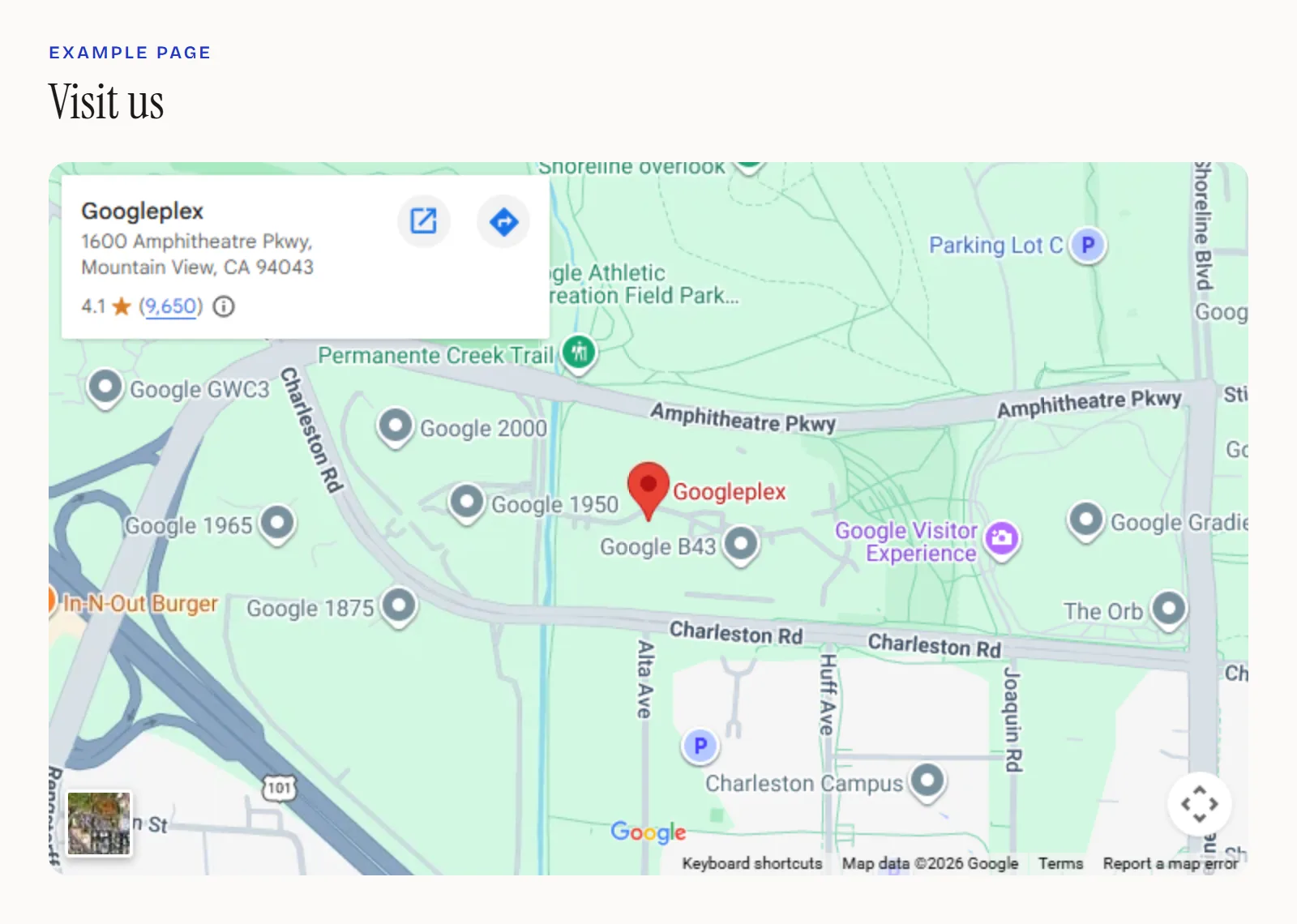
What the map will not do
- It shows no review text, only the average and the count.
- Its colours, fonts and card are Google’s, and there is no setting to change them.
- It is a live Google map, so the rating and count keep themselves current with nothing to update on your side.
How do you link customers to your Google reviews?
In your Business Profile, select Read reviews, then Get more reviews, then Copy. That link opens the review form for your business, and the same panel offers a QR code to print. To send people to read your reviews instead, open your listing on Google Maps and use Share, then Copy link.
Google generates the review QR code only in a computer browser, not on a phone. Its own suggestions for the link are receipts, thank-you emails, the end of a chat and a printed code in your shop, according to Business Profile Help.
One rule matters more than any placement. Google treats discounts or gifts in exchange for reviews as fake engagement and prohibits them, so ask every customer, not only the happy ones, and offer nothing for it.
A “Review us on Google” link beside the map embed is the lightest setup there is, and the only part of this page that adds reviews rather than displaying them.
How do you show the text of your Google reviews?
Request the reviews field from Google’s Places API. It returns at most five reviews for a place, sorted by relevance, with the average rating and the total count. Google decides which five. It needs an API key and a Cloud project with billing, and Google’s policies set out how you have to display what comes back.
GET https://places.googleapis.com/v1/places/YOUR_PLACE_ID
X-Goog-Api-Key: YOUR_API_KEY
X-Goog-FieldMask: displayName,rating,userRatingCount,googleMapsUri,reviews
The field mask names the fields you want, and you pay for the most expensive one. Reviews, the rating and the count all fall in the Place Details Enterprise + Atmosphere tier, according to Google’s Place Details documentation. Make the call from your server, so the key never appears in your page’s code, and find your place ID with Google’s Place ID finder or a text search.
The rules for showing what comes back
Google’s policies for the Places API apply to anything you build on it:
- Credit each review’s author with their avatar, name and profile link. Where space is short, the avatar is the minimum.
- Attribute Google Maps, with its logo where you can, or the words Google Maps where you cannot.
- Let visitors open each review on Google Maps, using the link that comes with it.
- Say how the reviews are ordered and filtered. By default, Google orders them by relevance.
- Do not store the content beyond what the policies allow. The place ID is the exception, and can be kept.
What “five reviews” means in practice
You cannot page through to a sixth, ask for the newest, or pick which five. The total count, on the other hand, includes ratings left without any text, so a business can show 200 reviews in its count and five on the page.
Can you show every one of your Google reviews?
Only as the business’s verified owner or manager, through the Google Business Profile API. Its reviews.list method returns all of a location’s reviews along with your replies. Access is gated: the profile must be verified and active for at least 60 days and list a website, and Google has to approve a request you send through its contact form.
This is the route for a business that wants its full review history on its own site, or an agency running many locations. Like the Places API, it gives you data rather than a display, so a developer builds and maintains the page, and the reviews of one business are only ever available to the people who manage it. The access rules are in Google’s prerequisites for the Business Profile APIs.
Do Google reviews on your website give you stars in search results?
No. Google’s review snippet guidelines say that when a business controls the reviews about itself, its pages with LocalBusiness or Organization markup are ineligible for review stars, and that includes reviews shown through an embedded third-party widget. The same guidelines say not to aggregate ratings from other websites, so do not mark up your Google rating either.
Google’s guidelines name the case directly: a review about a business, placed on that business’s own website, directly in its markup or through a widget. Adding AggregateRating markup by hand for the same reviews breaks a second rule, because ratings must come directly from your own users, not from another site.
Show reviews for the visitor deciding whether to trust you. That is what they are good for. How embedded content is indexed at all, and what it costs in page speed, is covered in how social media feeds affect SEO.
Where do you paste the code on Wix, WordPress, Squarespace, Shopify and Webflow?
Into each builder’s HTML element: Embed HTML on Wix, a Custom HTML block on WordPress, a Code Block on Squarespace, a Custom Liquid block on Shopify and an Embed element on Webflow. Check your plan first on two: Squarespace allows iframes in Code Blocks only on Core or higher, and Webflow runs custom code only on a paid Site plan.
How to add Google reviews to a Wix website
- In the editor, select Add Elements, then Embed Code, then Popular Embeds, then Embed HTML.
- Select Enter Code, paste the map code under Add your code here, and select Apply.
- Drag the frame to the size of the map. Wix displays only code served over HTTPS, which Google’s is.
WordPress
In the block editor, add a Custom HTML block where the map should sit and paste the code. No plugin is needed for the map embed, and the block’s preview shows it before you publish.
Squarespace
Add a Code Block and paste the code. Squarespace allows iframes in Code Blocks on its Core, Plus and Advanced plans, and the older Business and Commerce plans, so on Basic or Personal the map will not show.
Shopify
In the theme editor, add a Custom Liquid block or section to the template you want, such as the home page, and paste the code into it.
Webflow
Drag an Embed element onto the page and paste the code. Webflow runs custom code only on sites with a paid Site plan, so on a free webflow.io address the element stays empty.
The same blocks take a widget’s embed code. Our install guides for each platform cover each one step by step.
When is a Google reviews widget worth it?
When you want review text in your own layout without building on the API yourself. Most widgets read reviews through the Places API, so they show the same five. Ones that show every review use the Business Profile API and need you to sign in as the owner. Ask any tool which it uses, and how often it refreshes.
A Google reviews widget from Vitraz reads a business’s public reviews through the Places API, so it needs no sign-in to your Business Profile, and shows them in a review layout styled to match your site. Like every tool built on that API, it shows the five reviews Google returns. It refreshes them once a day, because reviews change rarely and each request is billed, and Google Reviews are available from the Studio plan.
Questions people also ask
Because it reads them through Google’s Places API, which returns at most five reviews for a place, sorted by relevance, with no way to ask for more or choose which. Showing every review needs the Business Profile API, which only a verified owner or manager can use, after Google approves access.
Not through the Places API: Google picks the five it returns. If you then leave some out, Google’s policies require a notice saying how the reviews are ordered and filtered. As a verified owner using the Business Profile API, you get every review, so you work from the full set.
In your Business Profile, select Read reviews, then Get more reviews, then Copy. The same panel has a QR code you can save and print, though Google only generates it in a computer browser. Google prohibits offering discounts or gifts in exchange for reviews.
No. Google Customer Reviews is a Merchant Center program for online stores, and its store widget shows a rating from Google’s Store Quality program. The reviews on your Business Profile, the ones people see on Google Maps, are separate and need one of the methods above.
Yes. The Google Maps embed is plain HTML that any site builder accepts in its HTML block, and it shows your rating and review count. Showing review text without a plugin or widget means calling the Places API from your own code.
Sources
- 1.Share or embed a mapGoogle Maps Help
- 2.Create a Google link or QR code to request reviewsGoogle Business Profile Help
- 3.Tips to get more reviewsGoogle Business Profile Help
- 4.Places API (New): Place resourceGoogle for Developers
- 5.Places API (New): Place DetailsGoogle for Developers
- 6.Policies for Places APIGoogle for Developers
- 7.Business Profile APIs: Work with review dataGoogle for Developers
- 8.Business Profile APIs: PrerequisitesGoogle for Developers
- 9.Review snippet structured dataGoogle Search Central
- 10.About the Google Customer Reviews store widgetGoogle Merchant Center Help
- 11.Code blocksSquarespace Help
- 12.Embedding a site or a widgetWix Help
Keep reading
Put real posts on your site, where Google can read them.
One deferred script, rendered into your page, no cookies. Your first feed is free and needs no card.
Build your first feed